Setting up tvOS apps
- Apple TV (tvOS)
- Apple iOS/tvOS Simulator
To prepare an Apple TV app you have two choices. Either use our Ottium communication method (see below) or manually insert the Instrumentation library into your app. Then create a build and upload it to Suitest.
Suitest supports native, TVML and hybrid (combination of native and TVML) apps written in Objective-C or Swift.
In case of testing on real devices, Suitest supports only
.ipapackage file extension. See Uploading package to Suitest section below.In case of testing on simulator, Suitest supports only
.zippackage file extension. See Uploading Apple TV simulator builds section below.
Choosing Ottium or Instrumentation library
Ottium is not supported when testing on simulators.
Suitest uses two different application communication methods to access information from a tvOS application:
- Instrumentation library
- A library inserted into your application, all features available.
- Ottium
- No external code inside your application, fewer features.
Ottium is a good fit if instrumenting the app is not practical. It needs no code changes. In exchange, some features are not available.
Comparison
| Feature | Instrumentation library | Ottium |
|---|---|---|
| Element repository | ||
| Mouse selection tool | ✓ | ✓ |
| Page structure | ✓ | ✓ |
| Search by property | ✓ | ✓ |
| Suggested elements | ✓ | ✓ |
| Device screen | ||
| Element highlighting on the device | ✓ | - * |
| Test editor | ||
| Set text | ✓ | ✓ (text fields only) ** |
| Send text | ✓ | ✓ |
| Assert video | ✓ | - |
| Assert network request | ✓ (simulators only) | - |
| Assert current location | ✓ | - |
| Preview mode | ✓ | - |
| General | ||
| Console logs | ✓ | - |
| Network logs | ✓ (simulators only) | - |
| Instrumentation | required (manual) | none |
* With Ottium, the selected element is highlighted in the screenshot in the element repository, not on the device.
** See Set text with Ottium.
List of supported element properties using Ottium
accessibility identifierheightis accessibleis enabledis focusedlabellefttagtextual contenttopvisibilitywidth
The textual content property holds the value attribute of the element. For secure text fields it holds only • characters, not the real text.
Using Ottium
Select Ottium (no instrumentation, fewer features) in the App communication method section of your application configuration. No method is selected by default. No further action related to the instrumentation library is needed. You can continue with package upload, or use the Bundle ID of an app that is already installed on the device instead.
Ottium needs WebDriverAgent on the Apple TV. Install it as described in Setting up additional features.
Ottium cannot be selected when the configuration has:
- a simulator build (
.zippackage) - a package that already includes the instrumentation library
If you choose a .zip package while Ottium is selected, the configuration cannot be saved. Change the communication method first.
If you select Instrumentation library - Manual insertion and the package does not include the instrumentation library, Suitest shows "Package is not compatible with the app communication method." A newly chosen package is not accepted. If the package is already stored, the configuration is not saved.
When you leave your app, for example with the Home button, Suitest loses the connection to the app unless testing outside your own app is enabled for your organization. No message is shown in that case.
In the element repository, Ottium is a separate platform, tvOS Ottium. Elements recorded with the instrumentation library have no identifying properties for it, and properties cannot be copied between the two. See Preparing the repository to work on multiple platforms.
If you switch an existing configuration to Ottium, test lines that use video, current location or network request show an empty subject. Change or remove those lines.
Searching for elements with Ottium
Search by property offers these identifying properties: XPath, Class Chain, Predicate String, Accessibility ID, Attributes, Text, Position, Size and Index. See Class Chain and Predicate String for their syntax.
- Text searches only the
valueattribute of the element. The search is case sensitive. - XPath, Class Chain, Predicate String and Accessibility ID each send a separate request to the device. For faster tests, use Class Chain or Predicate String and make it as specific as possible.
Page structure with Ottium
Loading the page structure can take several seconds in large apps. A running test does not load the structure. With precise element selectors, test runs are not affected. Autoload is on by default. Turn it off if loading slows you down, and load the structure on demand instead.
Set text with Ottium
With Ottium, the Set text line supports only text fields, secure text fields and search fields. On other elements the line fails with "Set text" is unsupported by this element.
Open the keyboard on the device before you set the text. Without the keyboard, the line fails.
Testing outside your own app
On Apple TV you can test your own apps, installed from an .ipa package. Testing outside your app, such as system apps or apps installed from the App Store, is not allowed by default. If you need it, contact sales@suite.st. Once it is enabled, open a system app by its Bundle ID, as described in Using App Store/TestFlight builds.
Using Instrumentation library
Use CocoaPods to instrument an Apple TV application in a few easy steps. At this point you should have a working Apple TV device in your Suitest account.
Instrumenting Apple TV apps written in Swift (Native and TVML)
-
Include the Suitest instrumentation library for Apple TV by adding a dependency to your
Podfile:target 'Target' do pod 'Suitest' endCheck the official Podfile guide for more information about using the Podfile.
-
Add
SuitestLauncher.instance.start()to yourAppDelegatefile. The final result should look like the following:import Suitest func applicationDidBecomeActive(_ application: UIApplication) { SuitestLauncher.instance.start() }
Instrumenting Apple TV apps written in Objective-C (Native and TVML)
-
Include the Suitest instrumentation library for Apple TV by adding a dependency to your
Podfile:target 'DevelopmentTarget' do pod 'Suitest' end # Suitest instrumentation library is written in *Swift*, so the Objective-C # compiler may complain about not knowing the Swift version. # The below makes the compiler happy. post_install do |installer| installer.pods_project.targets.each do |target| target.build_configurations.each do |config| config.build_settings['SWIFT_VERSION'] = '4.0' end end endCheck the official Podfile guide for more information about using the Podfile.
-
Add
[[SuitestLauncher instance] start]to yourAppDelegatefile. The final result should look approximately like so:#import <Suitest/Suitest-Swift.h> - (void)applicationDidBecomeActive:(UIApplication *)application { [[SuitestLauncher instance] start]; }
Using Swift Package Manager
- Open Xcode
- Go to your project
- Click on the project icon
- Go to Swift Packages tab
- Add new package with + button
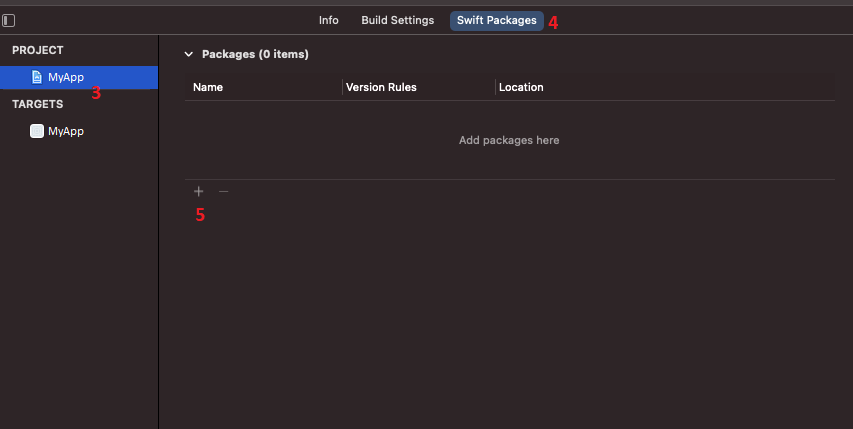
Opening the project in Xcode - Modal window will open
a) Enter the URL of the repository
b) Use version rules and select/insert the rest of the information based on your needs
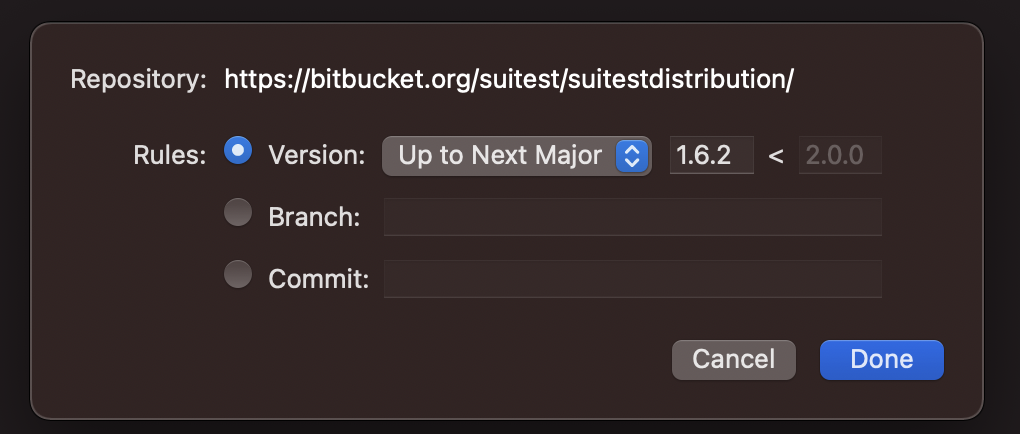
Modal window for the package details on older Xcode versions 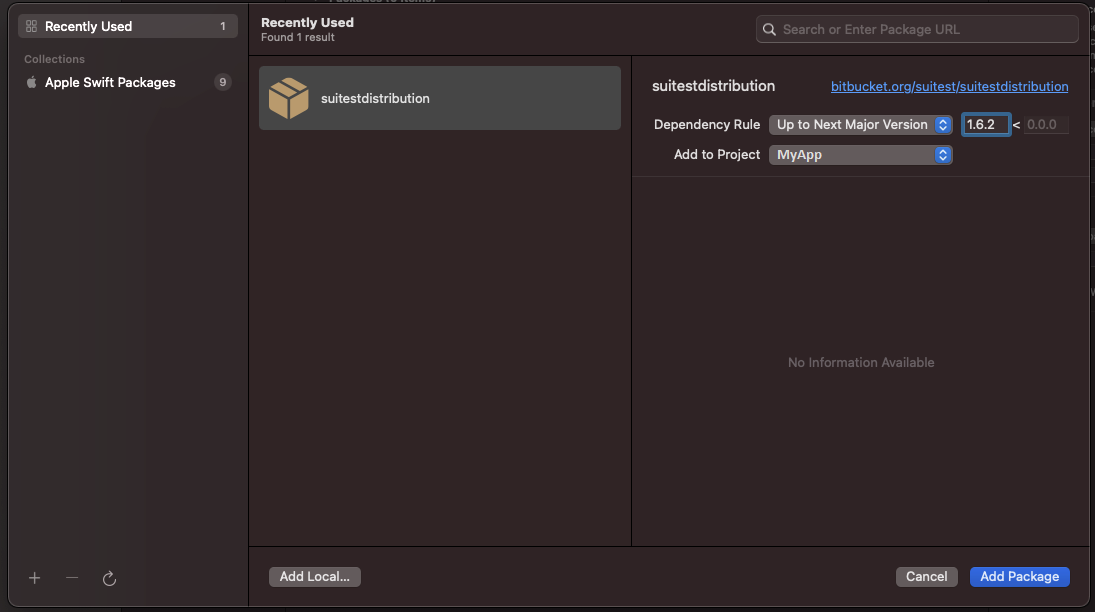
Modal window for the package details from Xcode 13
Uploading package to Suitest
After you have prepared the app for the selected communication method, create a development build of your app and upload it at the Suitest configuration (Settings tab) page. Suitest will automatically install or update the package on the device as necessary when you try running the app.
If you are using or planning on using Apple TV Simulators, create a separate configuration and upload a specific file to be used on simulators. Refer to the uploading Apple TV simulator builds section.
If you use Suitest Network API you can also send the package with an API request. Suitest will automatically install or update the package on the device as necessary when you try running the app on this device.
App package signing
According to Apple code signing guidelines the app package must be signed with a certificate allowing it to run on a particular device. You should make sure that this has been followed before you attempt to run the app through Suitest on your device. Suitest does not attempt to sign the app.
Using App Store/TestFlight builds
Supported only on real devices (not on simulators for now).
Due to Apple restrictions, Suitest cannot automatically install App Store and TestFlight builds on a device.
Apps installed from the App Store fall under testing outside your own app.
In order to use these types of build for testing with Suitest:
-
Install the app on a device manually.
-
Inside the application configuration in Suitest.
- Select I am using a different way to distribute apps (e.g. TestFlight).
- Insert the app Bundle ID.
Before uploading to the App Store
Apps installed from the App Store fall under testing outside your own app.
Suitest is intended for testing environment, however, it can be uploaded to the Apple App Store if you decide to do so at your own risk. The instrumentation library is in an inactive state until it is opened or run through Suitest.
If you decide to upload your application to the App Store and wish to test your live application, make sure that the package uploaded to the App Store is also the package uploaded to your Suitest configuration. If Suitest finds that the current running app on the device (from the App Store) is a different version to what is in the configuration, it will automatically install and run the application package from the configuration you have currently selected.
Waiting for application quiescence
When opening the application on a device, if this feature is turned on Suitest waits for quiescence as a confirmation that the app has been fully loaded.
suitester
The tvOS/iOS suitester sets the AccessibilityIdentifier for elements that do not have this
attribute set in your application, in order to improve the reliability of XPath selectors. Check the
suitester section for more information.
Uploading Apple TV Simulator builds
Ottium is not available for simulators. To test on a simulator you must use the Instrumentation library approach and instrument your app.
For the simulator, the .ipa files are not suitable. Instead, we need build for
the x86_64 architecture. This can be achieved by doing the following:
-
Select the simulator in Xcode.

Simulator selected -
Build the project -
Product > Buildor[CMD] + B.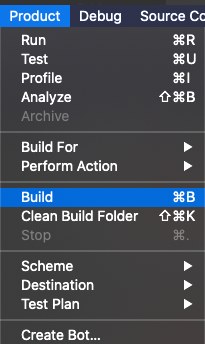
Build the project -
Show inside of finder.
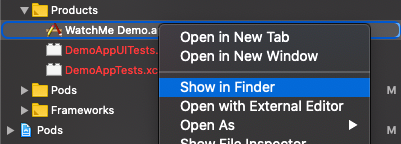
Show the product in finder -
Find the package inside of folder.
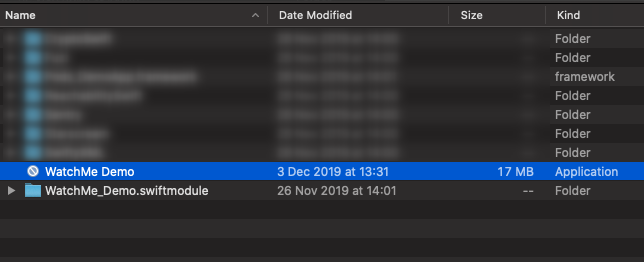
Package to be uploaded to Suitest configuration (Settings) -
Archive the package to a
.zipfile.