Suitest Camera app - Troubleshooting
If you cannot find the solution to your problem in the troubleshooting section, please contact our customer support.
Submitting Suitest Camera app logs
Please, submit your Suitest Camera app logs after an error occurred to help us with identifying your potential issues.
- Open the Streaming devices page
- Inside the context menu of given installation (3 dots on the right side) click on Submit logs item
- Describe the issue inside the Message field and click on Submit
Streaming is not working
Has your stream stopped working? Please try the following steps, one after another, until the issue is resolved.
- Refresh the streaming page in your browser by pressing
F5button - Restart the stream from the stream setup modal window
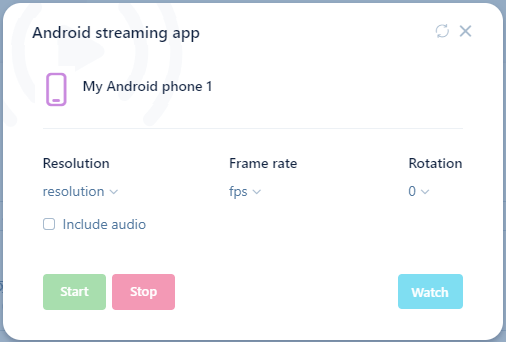
Stream setup modal window - On the mobile phone, disconnect and connect again
- On the mobile phone, re-open the application
Streamed video has green and purple colors
This is a common issue with some of the browsers. In order to resolve it, you will need to switch off the hardware acceleration settings in your browser. Please search online how to do it in the browser you are using or use a different one.
I would like to avoid having audio inside my recordings
Go into the setting of Suitest Camera app installation on given mobile phone and disable the audio inside the Recording section.